
This post may contain affiliate links. If you buy something through one of these links, Tech Info Central may earn a small commission at no extra cost to you.
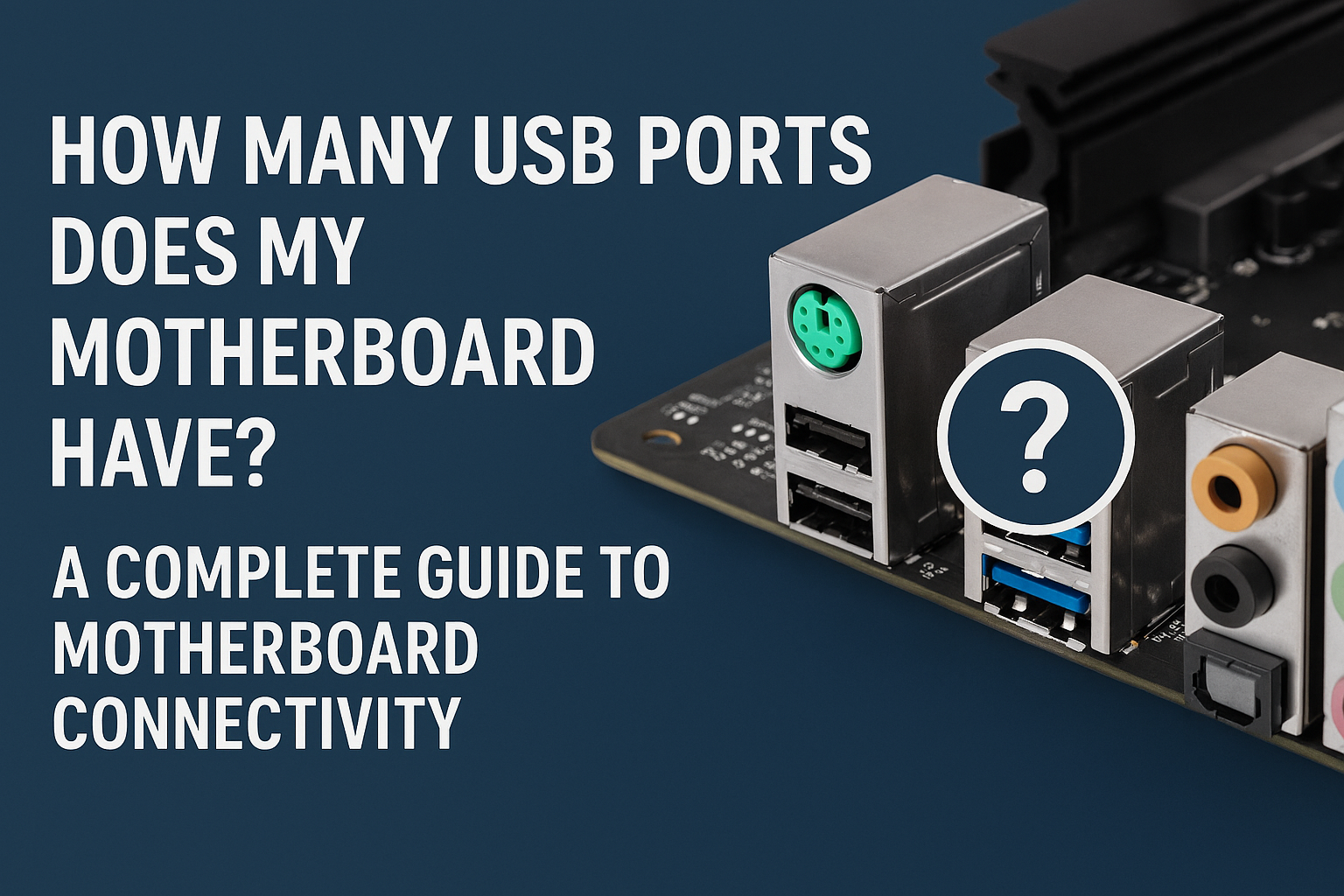
If you are asking how many USB ports does my motherboard have, the answer is not simply the number of USB sockets you can see on the back of the computer.
A motherboard can provide USB in two ways:
- physical ports on the rear I/O panel
- internal USB headers that connect to the case’s front ports or other devices
That means a board with eight visible rear ports may support several more through internal connectors.
Start With the Rear I/O Panel
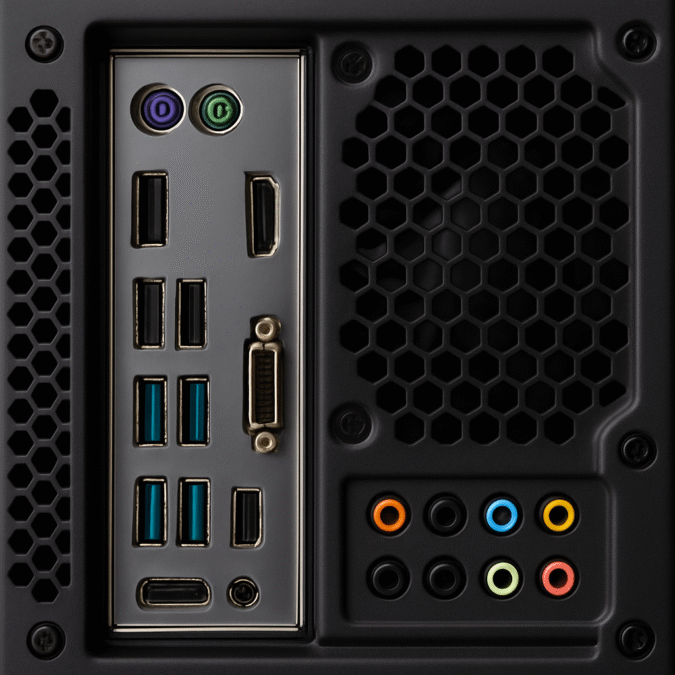
Look at the back of the computer where the monitor, Ethernet cable and audio connections are located.
Count the USB Type-A and USB Type-C ports there.
A budget motherboard might provide around four to six rear USB ports, while mid-range and high-end boards often provide considerably more.
The exact number varies by model.
Do not identify speed purely by colour.
Blue ports are often associated with faster USB standards, but manufacturers are not required to follow one universal colour scheme.
The printed labels and motherboard manual are more reliable.
Internal USB Headers Add More Ports
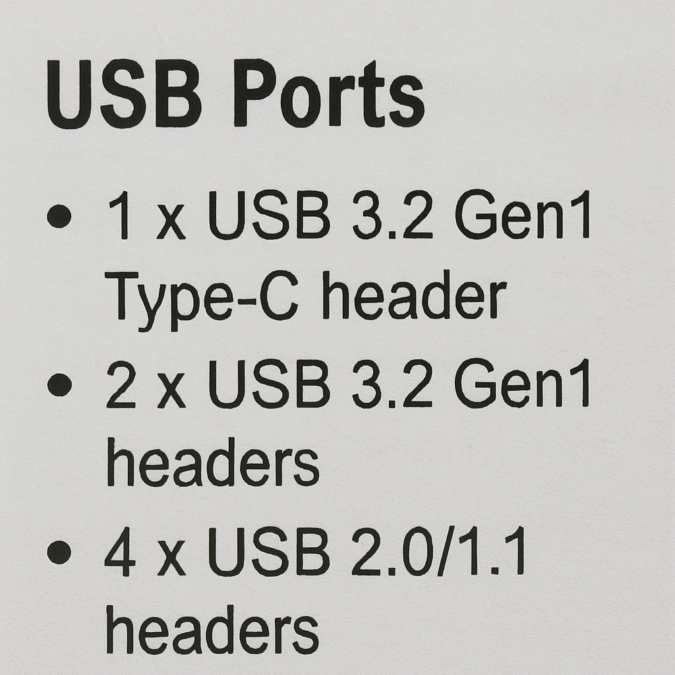
Open the motherboard manual and look for headings such as:
- USB 2.0 header
- USB 3.2 Gen 1 header
- front USB Type-C header
- USB 3.2 Gen 2 header
These connectors do not look like normal USB sockets.
They are pins or dedicated internal connectors used by the computer case.
One internal header can sometimes support more than one front-panel port.
This is why counting only the back of the computer does not tell you the motherboard’s full USB capacity.
Check the Exact Motherboard Model
The fastest way to get a definite answer is to identify the motherboard.
In Windows, you can use System Information or a terminal command. Third-party tools such as CPU-Z can also report motherboard details.
Once you have the manufacturer and exact model number, open the official specification page or manual.
Look for two separate sections:
- rear I/O
- internal connectors
Add the relevant USB connections together.
That gives you a much more accurate picture of what the board supports.
USB Naming Is Confusing
USB naming has changed several times.
You may see labels such as:
- USB 2.0
- USB 3.2 Gen 1
- USB 3.2 Gen 2
- USB 3.2 Gen 2×2
- USB4
The connector shape does not always tell you the speed.
A Type-C port can support several different USB standards.
A Type-A port can also range from old USB 2.0 speeds to much faster versions.
Check the motherboard specification instead of assuming every USB-C port is the fastest port.
What About Device Manager?
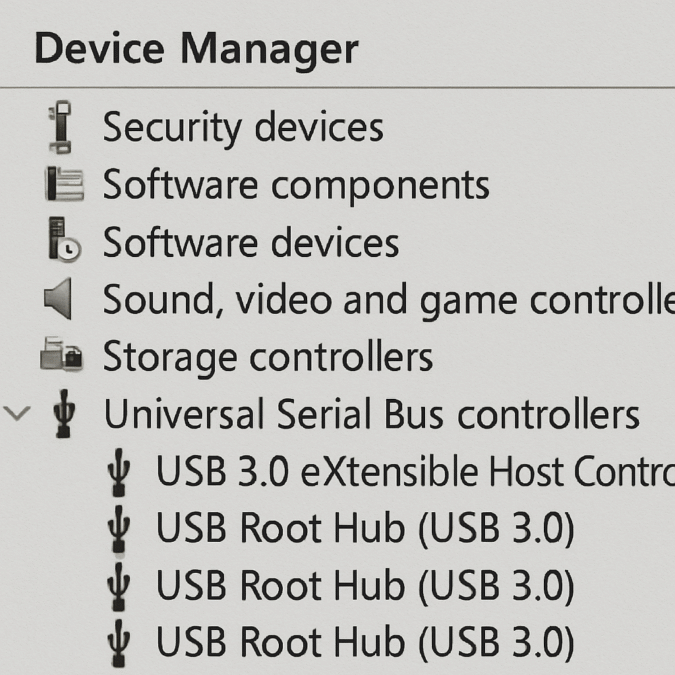
Windows Device Manager can show USB host controllers, hubs and connected devices.
It is useful for troubleshooting.
It is not a reliable way to count physical sockets.
One controller can manage several ports, and Windows may list internal hubs that you cannot physically connect to from outside the PC.
Use the motherboard manual when your goal is counting available connectors.
How Many USB Ports Do You Actually Need?
For a normal desktop setup, count the devices that stay connected:
- keyboard
- mouse
- webcam
- microphone or audio interface
- printer
- controller
- external drives
- phone cable
- USB headset receiver
- Bluetooth or Wi-Fi adapter
Then leave two or three spare ports if possible.
It is surprising how quickly USB connections disappear once a desk is fully set up.
Can You Add More USB Ports?
Yes.
The easiest options are:
USB Hub
A powered hub is ideal for keyboards, controllers, card readers and other lower-bandwidth devices.

PCIe USB Expansion Card
Desktop PCs can add a PCIe card with extra USB ports.
This can provide dedicated controller bandwidth and may be better for several fast external drives.
Case Front-Panel Ports
If the motherboard has unused internal headers, a compatible case or front-panel accessory can turn them into accessible ports.

Power and Display Support Are Separate Questions
A USB-C connector does not automatically mean high-power charging or video output.
USB Power Delivery and DisplayPort Alt Mode depend on the implementation.
Check the specification for the exact port.
This is particularly important on desktop motherboards, where a rear USB-C connector may be data-only.
Final Answer
To find out how many USB ports your motherboard has, count the rear USB sockets and then check the motherboard manual for internal USB headers.
Do not rely only on port colour, connector shape or Device Manager.
The exact motherboard model is the definitive source.
Once you know the board, you can also tell which ports are best for slow peripherals, fast SSDs, charging and front-panel connections.